

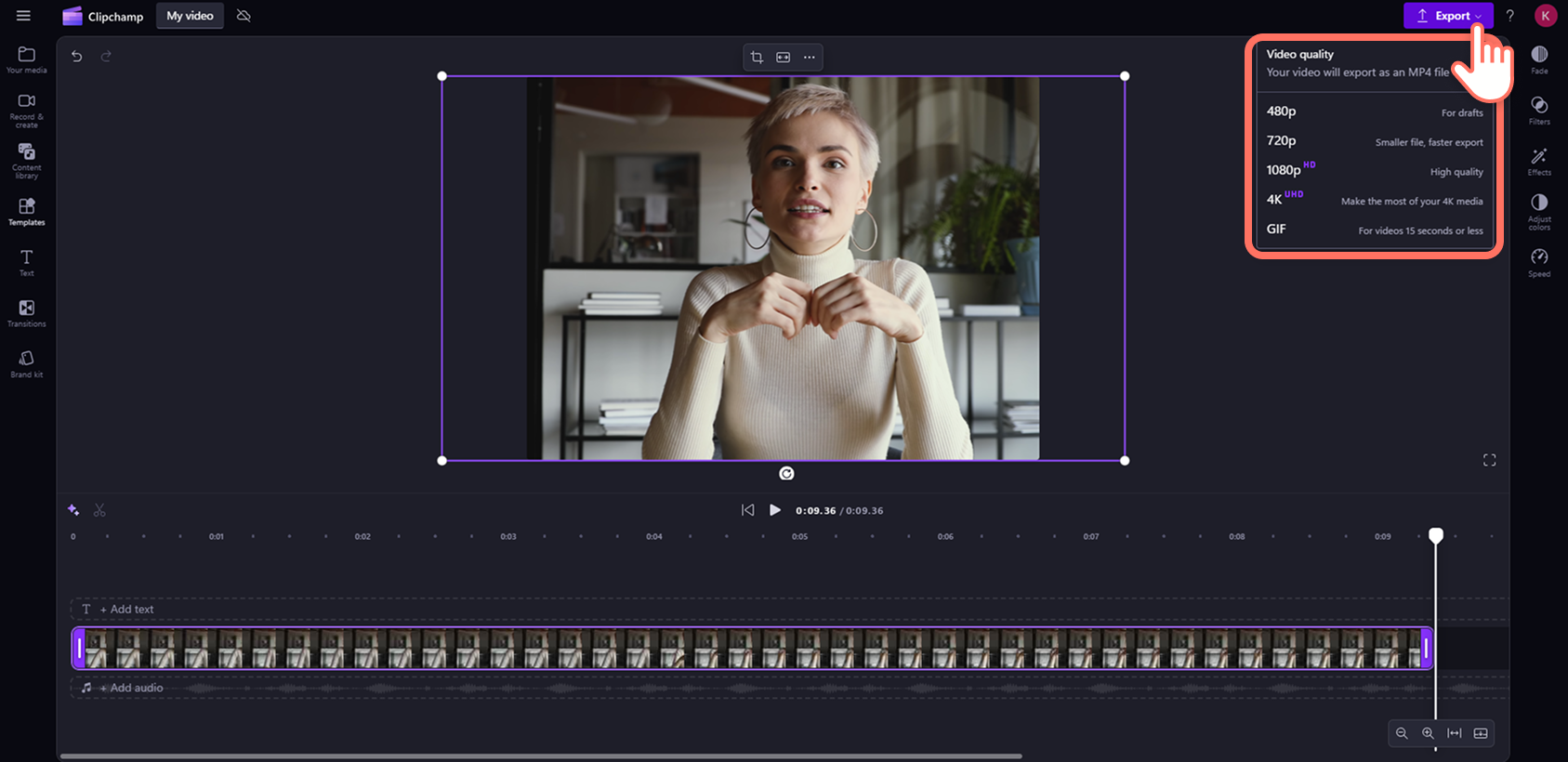
If you have a video that needs a little cleanup before you post it, you already know the frustration of trying to find a tool that does it all without requiring a download, a subscription, or a design degree. Trimming a clip and resizing it for the right platform should be simple, and with the right free online tool, it genuinely is. Whether you are cutting down a long recording for Instagram or reformatting a landscape clip into a vertical reel, this guide walks you through everything you need to know to get it done quickly, easily, and without sacrificing quality.
What “High Quality” Really Means When You Trim a Video Online
Before diving into tips and steps, it helps to understand one important thing: trimming a video online does not automatically reduce quality. The confusion usually comes from older tools or from accidentally exporting a video at a lower resolution than the original. A good online video trimmer preserves your original resolution and simply outputs a shorter version of the same file. The key is choosing a tool that exports in a modern format like MP4 and does not compress the file down during the process.
When quality does suffer, it is almost always because of one of three things: the export settings were lowered automatically, the tool converted the file to a lower-resolution format without warning, or the video was re-encoded multiple times. Sticking to a reliable tool and downloading your trimmed video only once prevents most of these issues. High quality output is not something you have to fight for when you are using the right platform.
Why Aspect Ratio Matters for Every Platform
If you have ever uploaded a perfectly trimmed video to a social platform only to see it come out with black bars on the sides or cropped in a strange way, aspect ratio is the reason. Every platform has a preferred video format:
- Instagram feed posts and Facebook videos typically prefer a square (1:1) or vertical (4:5) ratio
- TikTok and Instagram Reels are designed for full portrait mode (9:16)
- YouTube and most desktop platforms still favor the traditional widescreen landscape format (16:9)
- LinkedIn tends to perform well with square or landscape video
When you trim a clip and also change the aspect ratio in the same session, you are setting your video up for maximum visibility and engagement on whatever platform you are targeting. Doing both steps at once saves time and avoids the need to run your file through multiple tools.
8 Tips for Trimming and Resizing Video Online Without Losing Quality
1. Upload the Highest Resolution Version of Your File
If you have a choice between uploading a compressed version of a video or the original recording from your phone or camera, always go with the original. You cannot add back quality that is not there to begin with. Starting with the best version of your file gives you more flexibility during editing and ensures the final download looks crisp.
2. Use the Handlebar Method for Fast, Visual Trimming
Most good online trimmers offer a visual timeline where you can drag handles from both ends to set your start and end points. This is faster and more intuitive than typing in timestamps, especially for shorter clips where you are just cutting off a few seconds from the front or back. For longer videos, using manual time entry is more precise and helps you avoid overshooting your cut point.
3. Trim Before You Resize, Not After
It is more efficient to trim your clip to the right length first, then adjust the aspect ratio. If you resize first, you may find that repositioning the video in the new frame changes how certain moments look, which can require additional trimming to compensate. Getting the length right first makes every step after it cleaner.
4. Try the Adobe Express Video Trimmer for an All-in-One Workflow
One of the smoothest tools for this exact workflow is the video cutter from Adobe Express. Here is how to use it in a few steps:
- Go to the Adobe Express video trim page
- Upload your video file (up to 1GB is supported)
- Use the timeline handlebars or enter your start and end time manually to make your cut
- Once you have trimmed the clip, look for the aspect ratio options and choose between landscape, square, or portrait depending on your target platform
- Drag to reframe your video within the new dimensions if needed
- Download the finished clip as a high-quality MP4
The whole process takes a few minutes and requires no account or software download. The tool also lets you mute the audio before downloading, which is useful when you are creating silent or background video content. It works on desktop and mobile, so you can edit on whatever device you have in front of you.
5. Reframe Your Subject After Changing the Aspect Ratio
When you go from a landscape video to a square or portrait format, the automatic crop does not always center on the right thing. Most good tools let you drag the video within the new frame so you can make sure the main subject stays front and center. Take a moment to check this before downloading rather than discovering an awkward crop after the fact.
6. Do Not Re-Export the Same File Multiple Times
Every time a video is re-encoded during export, there is a small chance of additional compression. If you re-export the same clip through multiple tools or re-upload a file that has already been trimmed and resized, you may notice a gradual drop in sharpness. Try to get your edit finished in one session using one tool, then download the final version once.
7. Mute the Audio When the Background Sound Does Not Fit
This is an overlooked step. If you trimmed a longer video and the audio left over is ambient noise, an awkward pause, or music that does not match your intended use, muting it entirely is a clean solution. You can always add a new audio track when you post on most social platforms. Starting with a clean, silent video clip gives you the most flexibility.
8. Preview Before You Download
Always preview your trimmed and resized video before hitting the download button. Watch for a couple of things in particular: does the playback start and end at exactly the right moment, and does the subject of the video stay fully visible within the new frame? A quick preview pass takes seconds and prevents the need for a second editing session after you have already moved on.
How to Trim a Video for Each Major Social Platform
Understanding the practical requirements for each platform removes a lot of guesswork from the process.
For TikTok and Instagram Reels, you want a 9:16 portrait video. Most phone recordings already come out in this format, but if you recorded horizontally, you will need to change the aspect ratio before posting. Keep in mind that TikTok allows videos up to 10 minutes, but the most-viewed content tends to be under 60 seconds.
For Instagram feed posts and Facebook, square video tends to perform well and takes up more screen space in a mobile feed than landscape. Landscape video works better on Facebook Pages or anywhere the content is meant to be viewed on desktop. For YouTube, landscape is still the standard, with 16:9 being the default format most viewers expect.
LinkedIn video tends to be viewed on both mobile and desktop, so square or landscape both work well depending on your content. For email marketing and embedded video on a website, landscape is almost always the safest bet.
Matching File Format to Platform for Best Quality
After you trim and resize your video, the file format you download in matters almost as much as the resolution. MP4 files using H.264 encoding are widely supported across all major platforms and offer a good balance between file size and quality. Most online video trimmers export in MP4 by default, which makes this simple.
Avoid converting your trimmed video into formats like AVI or MOV unless a specific platform requires it, because those formats can result in unnecessarily large file sizes or compatibility issues on certain devices. When in doubt, MP4 is the right answer.
What to Do If Your File Is Too Large to Upload
Some online tools have file size limits that can be a problem if you are working with long or high-resolution recordings. Before uploading, check what the size limit is for the tool you are using. If your file exceeds it, try a few things:
- Shorten the clip before uploading by using a basic phone editing app to get it under the limit
- Record shorter clips in the future rather than trimming long ones
- Check whether the tool allows you to trim using a direct file link instead of an upload
Adobe Express supports files up to 1GB, which covers most standard video files recorded on modern phones or cameras.
Frequently Asked Questions
Do I need to create an account to trim a video online for free?
Many online video trimmers, including Adobe Express, let you get started and trim a basic clip without signing up. You may be prompted to create an account if you want to save your project, access additional features, or download in higher quality. For a quick, one-time trim and aspect ratio change, you can often complete the task and download your video without committing to an account at all. Creating a free account, however, is usually worth it if you plan to edit videos regularly, since it gives you access to more tools and saves your work automatically.
Will changing the aspect ratio stretch or distort my video?
No, a well-designed tool will not stretch your video when you change the aspect ratio. Instead, it crops it to fit the new frame. This means some of the original footage on the edges may not appear in the final clip, which is why repositioning or reframing the content within the new format is an important step. Think of it less like resizing an image and more like moving a window around to focus on a specific part of the scene. As long as your subject is not cut off in the final preview, the output will look clean and natural.
Is there a limit to how many times I can trim a video for free?
Most free online video trimmers do not impose a strict limit on how many times you can use the tool, but they may limit file sizes, output resolution, or the number of projects you can save. If you are regularly trimming videos for social media or content creation, it is worth exploring whether the tool you use has a free tier that fits your volume, or a low-cost plan that removes any caps. For occasional personal use, the free version of most tools is more than sufficient.
What is the best aspect ratio for posting video on multiple platforms at once?
If you need to post the same clip across multiple platforms without editing it separately for each one, square video (1:1) tends to be the most universally compatible. It looks natural on Instagram, Facebook, and LinkedIn without any awkward bars or major cropping, and it takes up significant screen real estate in mobile feeds. That said, for platforms like TikTok or YouTube, platform-specific ratios will always outperform a compromise format. If you have a few extra minutes, trimming and resizing separate versions for your top two or three platforms is the better long-term strategy. A free tool like Buffer can help you organize and post those different versions to each channel without manually logging in to each one.
Does trimming a video affect the audio sync?
When you trim a video using a quality online tool, the audio track is adjusted along with the video, so sync should not be affected. The portion of audio that corresponds to your cut section is simply removed, and the remaining audio plays correctly with the remaining footage. Where audio sync problems can occur is when you are combining multiple clips, adding a new audio track, or converting between formats repeatedly. If you are only trimming and resizing a single clip with no audio editing, you should not run into any sync issues.
Conclusion
Trimming a video and changing its aspect ratio does not need to be complicated, expensive, or time-consuming. With the right free online tool, you can go from raw footage to a polished, platform-ready clip in a matter of minutes, without downloading software or learning complicated editing workflows. The tips in this guide give you a practical framework for making clean cuts, resizing intelligently for each platform, and protecting your video quality every step of the way.
Whether you are posting a quick reel, preparing a promotional clip, or simply cleaning up a video before sharing it with friends, the process is the same: start with your best file, trim first and resize second, and preview before you download. Keep it simple, stay consistent with your format choices, and let the tools do the heavy lifting.
